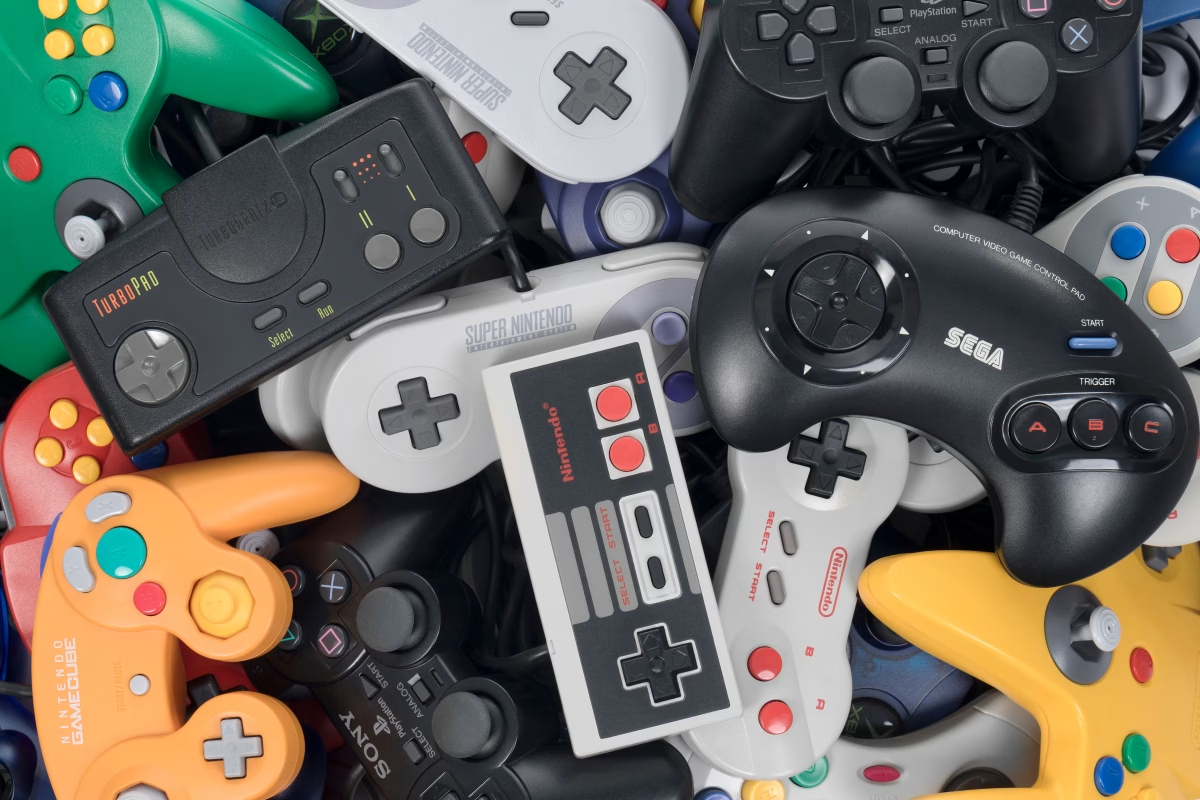
Retro gaming has made a significant comeback in recent years, with enthusiasts eager to play classic titles from the past. While most people emulate old-school games on PCs, smartphones, and handheld consoles, a new challenge has emerged: how to emulate retro games on your Apple Watch. The idea of running classic titles on such a small screen may seem impossible, but with the right tools and methods, it can be an exciting and nostalgic experience.
Setting Up Your Apple Watch for Retro Gaming
Before diving into the world of emulation, you need to prepare your Apple Watch. While Apple does not officially support emulation, there are workarounds that allow you to run classic games on your wearable device. Here’s what you’ll need:
- An Apple Watch (Series 6 or later recommended) – Newer models have better processors and screens, making the experience smoother.
- A Mac or PC – This is necessary for sideloading apps and transferring game files.
- Xcode and AltStore – These tools will help you install third-party apps on your Apple Watch.
- Game ROMs (legally acquired) – You’ll need game files from classic systems like the NES, Game Boy, and SNES.
Once you have everything ready, you can begin setting up your device for retro gaming.
Installing an Emulator on Your Apple Watch
Since Apple’s App Store does not allow emulators, you must sideload an emulator manually. Here’s how to emulate retro games on your Apple Watch by installing an emulator:
Step 1: Install Xcode on Your Mac
Xcode is Apple’s development environment and is necessary to sideload apps onto your Apple Watch. Download Xcode from the Mac App Store and install it.
Step 2: Get AltStore and Activate Developer Mode
AltStore allows you to install unofficial apps on your iPhone and Apple Watch. Download it onto your computer, then enable Developer Mode on your iPhone and Watch under Settings > Privacy & Security.
Step 3: Download a Compatible Emulator
There are a few emulators that have been modified to work on Apple Watch. Some of the best options include:
- Provenance – A multi-system emulator supporting NES, SNES, Sega Genesis, and more.
- RetroArch – A versatile emulator with support for various classic gaming consoles.
- GBA4iOS (Modified for Apple Watch) – A popular Game Boy Advance emulator adapted for the Apple Watch screen.
Step 4: Sideload the Emulator onto Your Apple Watch
Using AltStore or Xcode, sideload your chosen emulator onto your Apple Watch. This process may take some trial and error, but once completed, the emulator should be available on your watch.
Loading and Playing Retro Games on Your Apple Watch
Now that you have installed the emulator, the next step is adding game ROMs and configuring settings for smooth gameplay.
Transferring Game ROMs
To load games onto your Apple Watch, transfer the ROM files using iCloud Drive, AirDrop, or a file manager app. Ensure that your emulator supports the format of your ROMs.
Optimizing Controls for Apple Watch
Since the Apple Watch lacks traditional gaming buttons, you’ll need to configure controls carefully:
- On-Screen Touch Controls – Some emulators provide touch-based buttons, but they can be tricky on a small screen.
- External Bluetooth Controllers – Connect a compact Bluetooth controller for a more comfortable experience.
- Tilt and Gesture Controls – Some emulators offer motion-based controls, making use of the Apple Watch’s sensors.
Adjusting Performance Settings
Retro games require minimal processing power, but optimizing settings can improve the experience:
- Reduce graphical effects to prevent lag.
- Use frame skipping if needed for smoother gameplay.
- Adjust sound settings to minimize audio delays.
Best Retro Games to Play on Your Apple Watch
Not all retro games are suitable for the Apple Watch due to its small screen and limited controls. Here are some titles that work surprisingly well:
- Tetris (Game Boy) – Simple controls make this puzzle classic easy to play.
- Super Mario Bros. (NES) – While tricky on a small screen, it’s a fun challenge.
- Pokémon Red/Blue (Game Boy) – Turn-based gameplay suits the Apple Watch’s limited input.
- Pac-Man (Arcade) – The simple controls and quick gameplay make it a great choice.
- The Legend of Zelda: Link’s Awakening (Game Boy) – Adventure games work well with on-screen buttons.
The Future of Retro Gaming on Wearables
As technology advances, playing classic games on smartwatches may become more common. Future Apple Watch models with larger screens and better processing power could make emulation even smoother. Developers might also create official apps to support retro gaming, making it easier for fans to enjoy classics on their wrist.
For now, knowing how to emulate retro games on your Apple Watch allows you to explore new possibilities and experience nostalgia in an innovative way. Whether you’re reliving childhood favorites or experimenting with wearable gaming, this method proves that classic games can be enjoyed anywhere—even on your wrist.