LaunchBox vs Playnite: Best PC Emulation Frontend? (2026)
A frontend is the layer between you and your emulators. Instead of navigating Windows Explorer to find a ROM and manually opening an emulator, a frontend presents your entire library with box art, descriptions, ratings, and launch buttons in a unified interface. In 2026, the two dominant choices for Windows are LaunchBox (with BigBox arcade mode) and Playnite. They have fundamentally different philosophies, different target users, and different price points. This comparison tells you which to choose based on your actual situation.
What a Frontend Does (and Does Not Do)
A frontend does not replace an emulator. It organises, displays, and launches games through your existing emulators. RetroArch, PCSX2, Dolphin, and DuckStation still do the actual emulation. The frontend is the shelf and catalogue your game library lives in.
The question of which frontend suits you depends on: how many games you have, how you display them (monitor at desk vs TV in living room), whether you also play modern Steam/GOG games, and how much you want to pay.
LaunchBox and BigBox
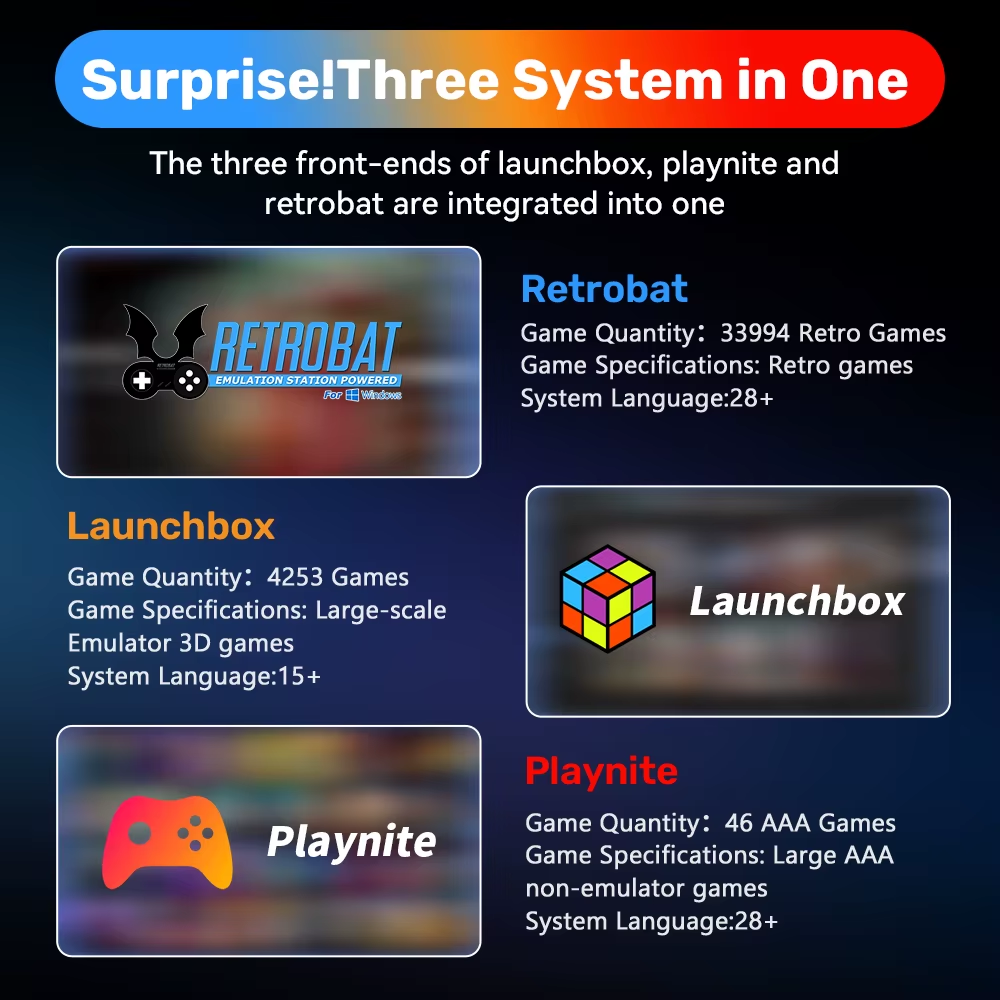
LaunchBox (launchbox-app.com) is a Windows-only frontend built specifically for game collection management. The free version functions but has limitations. BigBox is the premium TV-mode interface, and it is what makes LaunchBox worth discussing seriously.
Cost: LaunchBox Premium with BigBox is $30 one-time or around $20/year. The free version omits BigBox and several premium features.
What LaunchBox does exceptionally:
Database and metadata: LaunchBox maintains its own game database, one of the most comprehensive of any frontend. Scraping metadata, screenshots, box art, and background art is largely automatic and accurate, including for obscure platforms.
EmuMovies integration: Premium subscribers access EmuMovies, a database of gameplay video snaps for thousands of games. The BigBox interface shows video previews as you browse, making the browsing experience feel like a commercial product.
BigBox themes: The BigBox interface has a community marketplace with hundreds of custom themes. Some replicate the feel of specific consoles’ menus (a SNES-themed menu for SNES games, etc.). For a dedicated arcade cabinet in a living room, BigBox’s theme depth is unmatched.
Game organisation: LaunchBox handles multi-disc games, regional variants, and different game versions more intelligently than most frontends, with duplicate detection and manual merge tools.
What LaunchBox misses:
The free version is genuinely limited for practical use. BigBox — the primary reason most people choose LaunchBox over alternatives — is locked behind payment. On lower-spec PCs, LaunchBox’s process is heavier than Playnite.
Playnite
Playnite (playnite.link) is open-source, free, and designed as a universal game launcher covering both retro emulation and modern storefronts. It imports your Steam, GOG, Epic Games, Humble, Xbox Game Pass, and Amazon Games libraries alongside emulated retro games.
Cost: Free. Entirely open-source under MIT licence.
What Playnite does exceptionally:
Universal library: Playnite’s integration with Steam, GOG, and Epic means your retro library and modern library coexist in one interface. For a PC gamer who also plays retro games — rather than a dedicated retro gamer — this is the correct tool. You browse from your GBA Pokémon games (covered in our best Pokémon emulators for PC guide) to your Steam backlog in one interface.
Plugin ecosystem: Playnite has a plugin API with hundreds of community extensions. Additional metadata scrapers, custom theme engines, controller navigation improvements, library statistics, and platform-specific metadata fetchers are all available.
Performance: Playnite is notably lighter than LaunchBox. On older PCs or machines with limited RAM, the difference is significant.
Fullscreen mode: Playnite’s fullscreen mode works competently on TV setups, though it is less visually polished than BigBox.
What Playnite misses:
Fullscreen mode is functional but not as impressive as BigBox. No integrated video snap library equivalent to EmuMovies. Theme marketplace is community-driven without the same curation as BigBox’s.
The Decision Framework
This is what most comparison guides do not give you — a clear, situation-specific answer:
| Your situation | Use |
|---|---|
| Dedicated arcade cabinet or TV setup | LaunchBox + BigBox |
| Living room gaming PC with retro + modern games | Playnite |
| Mixed retro + Steam library on one desktop | Playnite |
| Budget matters (free vs paid) | Playnite |
| You want video game snaps in a browse interface | LaunchBox Premium |
| Building on Steam Deck | Neither — use EmulationStation DE via EmuDeck |
What About EmulationStation DE?
EmulationStation DE (the default frontend on EmuDeck) is a separate option specifically optimised for controller navigation and the Steam Deck’s handheld format. For PC desktop use, LaunchBox or Playnite are both more appropriate. For Steam Deck, EmulationStation DE is correct.
For the ROM organisation that underpins any good frontend setup, see our GBA guide at best GBA emulators for PC for how PS2 and GBA library management works before scraping. And for the full emulator directory, visit our emulators hub.