Emulation Upscaling Guide: Making PS1 and PS2 Look Like 4K (2026)
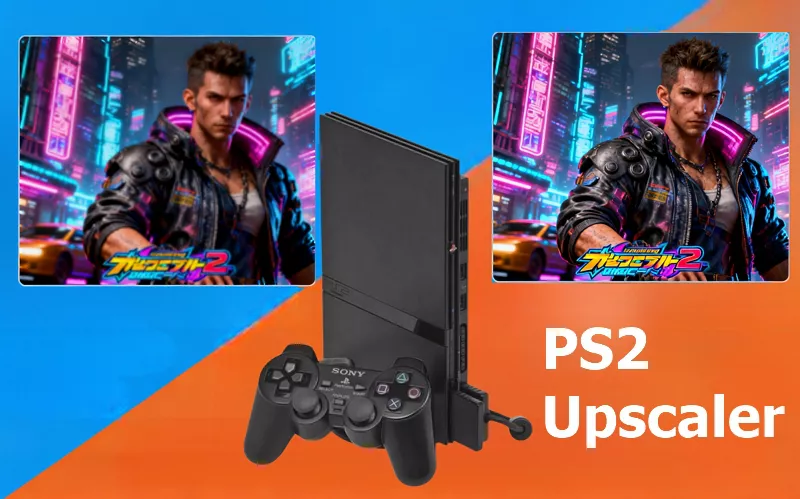
One of the most visually dramatic things you can do in emulation is increase internal rendering resolution. A PS1 game at 8x its original resolution on a 4K monitor looks genuinely different — cleaner geometry, sharper textures, eliminated jagged edges. But upscaling creates specific problems that most guides do not warn you about, and applying it incorrectly breaks effects that were intentional parts of the original design. This guide covers what actually happens when you upscale, what works, and what to watch for.
Internal Resolution Scaling vs Display Upscaling: The Critical Distinction
These are not the same thing. Almost every guide conflates them.
Internal resolution scaling: The emulator renders the 3D geometry at a multiple of the original resolution. Every polygon, texture sample, and lighting calculation is done at the higher resolution. The output is genuinely higher quality, not an interpolated approximation.
Display upscaling (AI/algorithmic): Takes a rendered frame — at whatever resolution the emulator produced — and algorithmically enlarges it. DLSS, FSR, NIS, and similar tools do this. The output is larger but not fundamentally more detailed than the input.
For retro games, internal resolution scaling is your primary tool. Display upscaling adds marginal benefit on top. Understanding this prevents the mistake of enabling DLSS and thinking it replaces proper internal resolution configuration.
PS1 Upscaling: DuckStation and Beetle PSX HW
PlayStation 1 games rendered natively at between 256×224 and 640×480 depending on the game’s video mode. Most 3D games used 320×240.
In DuckStation: Settings > Graphics > Renderer (use Vulkan) > Resolution Scale. Select your multiplier. In Beetle PSX HW (RetroArch): Quick Menu > Options > Internal GPU Resolution.
| Multiplier | Effective 3D Resolution | Best For |
|---|---|---|
| 1x | 320×240 native | CRT shader use; weakest hardware |
| 2x | 640×480 | 1080p displays, mid-range PC |
| 4x | 1280×960 | 1440p displays, high-end PC |
| 8x | 2560×1920 | 4K displays |
What upscaling improves: 3D polygon geometry becomes dramatically cleaner. Character models, weapon models, and environmental geometry lose their staircase-jagged edges and look substantially sharper. Metal Gear Solid’s character faces at 8x look entirely different from 1x.
What upscaling does not improve: Pre-rendered 2D backgrounds (Final Fantasy VII, VIII, IX, Resident Evil 1-3, Parasite Eve). These are stored as pre-rendered image files at fixed low resolution. Scaling the 3D resolution does not affect these images — they remain blurry at any upscaling level. This is a fundamental limitation, not a setting problem.
PGXP — Enable This Always: PGXP (Precision Geometry Transform Pipeline) corrects the PS1’s integer-math polygon coordinate system, eliminating the “wobbling polygon” effect iconic to PS1 games. Enable it in DuckStation at Settings > Graphics > Geometry Correction. It makes the geometry read as a stable, modern 3D rendering rather than shifting plastic. This is transformative for every 3D PS1 game.
PS2 Upscaling: PCSX2
PS2 games rendered natively at 480i or 480p (640×448 effective). Some PS2 games supported 1080i output (like Gran Turismo 4) but most used the standard 480p framebuffer.
In PCSX2: Graphics > Renderer (Vulkan) > Internal Resolution. Our full PCSX2 configuration is covered in the best PS2 emulators on Android guide and the Steam Deck-specific config elsewhere on this site.
| Multiplier | Effective Resolution | Performance Cost |
|---|---|---|
| 1x | 640×448 native | Baseline |
| 2x | 1280×896 | Moderate |
| 3x | 1920×1344 | High |
| 4x | 2560×1792 | Very high |
Critical problem: resolution detection in PS2 games. Some PS2 games detect their own rendering resolution and enable or disable visual effects based on it. Gran Turismo 4 activates high-fidelity car reflections only at native resolution — at 2x or above, the reflection quality drops significantly. Shadow of the Colossus changes how it calculates motion blur above native resolution. Test each game at multiple resolutions rather than assuming higher is always better.
Texture filtering at 2x+: Enable bilinear filtering (Graphics > Bilinear Filtering > Bilinear PS2) for smoother textures at scaled resolution. Without it, upscaled textures have a blocky nearest-neighbour appearance that looks worse than native.
GameCube and Wii Upscaling: Dolphin
Dolphin is the emulator with the cleanest upscaling story. GameCube games rendered at 480p natively; Dolphin renders them at whatever internal resolution you specify. The Dolphin setup guide covers the complete configuration, but for upscaling:
In Dolphin: Graphics > General > Internal Resolution. 3x Native (1440p output from 480p input) is the recommended setting for most GPUs. 4x (1920p output) for high-end hardware.
Dolphin’s advantage: GameCube and Wii games did not use the same pre-rendered background tricks as PS1 JRPGs. The 3D scenes are rendered in real-time, so scaling the internal resolution scales the entire visible scene, not just the polygon geometry.
Dolphin’s text problem: In-game text rendered as 3D billboard geometry scales with the scene. Menu text and UI elements often stored as 2D textures do not. The result: combat scenes look sharp at 4x but menu screens look inconsistently blurry. This is not fixable in standard Dolphin settings — it is a fundamental distinction between 3D geometry and 2D texture usage in the original games.
PS3 Upscaling: RPCS3
PS3 games targeted 720p natively. RPCS3’s resolution scaler works at multipliers from 1x to 4x. See the RPCS3 advanced guide for detailed PS3 upscaling configuration. The key difference from PS1/PS2: PS3 games were designed for the HD era and scale cleanly at 1.5x (1080p) without the same artefact categories as PS1 and PS2 scaling.
The Problem Nobody Mentions: Scaled HUDs and UI Elements
At high internal resolutions, heads-up displays (HUDs) — health bars, score counters, minimaps — are often rendered at a fixed resolution independent of the 3D scene. They appear microscopic at 8x PS1 scaling or 4x PS2 scaling while the game world looks sharp. This is not fixable through emulator settings alone; widescreen and UI fix mods exist for some popular titles but not all.
Full emulator directory and system guides at our emulators hub.