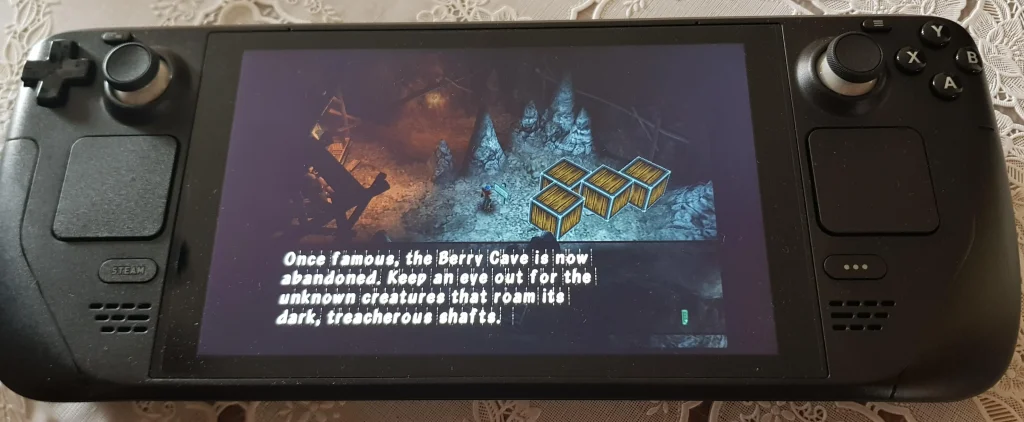
PS2 Emulation on Steam Deck: Ultimate PCSX2 Config
The Steam Deck running PS2 games is one of the best arguments for Valve’s hardware: a device that fits in a bag delivering Shadow of the Colossus, God of War, and Silent Hill 2 at resolutions and frame rates the original PlayStation 2 never achieved. PCSX2 on Steam Deck via EmuDeck works out of the box for most games, but the default configuration is not optimal. These settings unlock the full potential.
Foundation: EmuDeck + PCSX2 Setup
EmuDeck installs PCSX2 automatically. If you have not completed Steam Deck emulator setup, start with our how to install emulators on Steam Deck guide first.
EmuDeck places your ROMs folder at ~/Emulation/roms/ps2/. Drop your PS2 ISO or CHD files here and they appear in EmulationStation DE automatically.
The BIOS requirement — the single most common setup failure: PCSX2 will not run any game without a PS2 BIOS file extracted from a real PlayStation 2 console. Place the BIOS file in ~/Emulation/bios/.
BIOS filenames are case-sensitive on Linux (Steam Deck is Linux). This is the mistake nobody warns about. The BIOS file must be named exactly as PCSX2 expects:
- USA:
SCPH-70012.bin(note the hyphen, not underscore, and the exact capitalisation) - Europe:
SCPH-70002.bin - Japan:
SCPH-70004.bin
A file named scph70012.bin or SCPH70012.BIN will not be recognised. Rename precisely.
PCSX2 Settings for Steam Deck: The Optimal Config
Open PCSX2 through EmuDeck’s Manage Emulators panel in Desktop Mode. Apply these settings globally, then override per-game as needed.
Renderer: Vulkan. Always. OpenGL is a fallback only. The Steam Deck’s AMD RDNA 2 GPU handles Vulkan significantly better than OpenGL for PCSX2’s rendering workload.
Internal Resolution: 2x Native (1280×896). This is the Steam Deck sweet spot. At 2x, the vast majority of PS2 games run at a stable 60FPS, the output resolution closely matches the Deck’s 1280×800 native screen, and GPU load remains manageable for 3+ hour battery life. 3x is achievable for lighter games but risks frame drops in demanding titles.
Bilinear Filtering: Enabled. At 2x internal resolution, bilinear filtering smooths textures without introducing the artificial edge halos of sharpening filters. Turn it off for games with intentional pixel art aesthetics.
VSync: Off. Manage frame pacing via Steam’s built-in per-game Frame Limit overlay (set to 60FPS in the Quick Access menu’s Performance tab) rather than hardware VSync. VSync in PCSX2 creates inconsistent frame delivery on the Deck’s AMD GPU.
Mipmapping: Basic. The full mipmapping option is more accurate but introduces texture pop in some PS2 games at non-native resolution. Basic is the correct default.
Per-Game Configuration: The Settings That Differ by Title
Right-click any game in PCSX2’s game list and select Properties > Game Fixes for per-title overrides. The most important per-game settings:
God of War (1 and 2): Enable the IOP Clock Speed hack at 150%. The IOP (I/O Processor) runs the game’s event loop; increasing its clock to 150% stabilises frame pacing during arena combat sequences where the original PS2 strained.
Shadow of the Colossus: Set EE Cyclerate to +1 (one notch above default in the EE/IOP Hacks section). This gives the main CPU emulation slightly more headroom during colossus fights. Also enable the 60FPS community patch via PCSX2’s Patches system.
Gran Turismo 4: Reduce to 1x internal resolution. GT4 uses a resolution detection system to enable high-fidelity car reflections and environmental mirroring — the effect is only triggered at native PS2 resolution and is disabled at any upscaled resolution. At 1x, it looks exactly as the developers intended.
Silent Hill 2 and 3: Enable the software renderer for specific scenes where the hardware renderer produces graphical corruption. Use a per-game config to toggle between hardware (for general gameplay) and software (for affected areas).
Burnout 3: Takedown: Enable Fast CDVD in the speed hacks section. This dramatically reduces track loading times, one of the major irritants in PS2 Burnout play.
Battery Life by Configuration
At 2x internal resolution + Vulkan + VSync off, PCSX2 draws 10-12W on the Steam Deck OLED. Expected battery life: 2.5 to 3.5 hours. To extend sessions:
- Reduce TDP limit to 8W in Steam’s Performance overlay (minor frame rate impact for lighter titles)
- Drop to 1.5x internal resolution (saves ~15% GPU load)
- Enable the Deck’s 40Hz/40FPS mode for PS2 games that do not hit 60FPS consistently — 40FPS feels smoother than 60FPS that dips to 45FPS
For PS2 emulation across other platforms, our best PS2 emulators on Android guide covers mobile options with equivalent per-game configuration depth. For the next generation up, see our RPCS3 PS3 guide.
When PCSX2 Fails a Specific Game
If a game runs poorly or crashes in PCSX2 on Steam Deck:
- Check the PCSX2 compatibility database (pcsx2.net) — filter for your specific game title
- Try switching the renderer from Vulkan to OpenGL — some games have GPU-specific issues
- Check for a community-authored game patch in PCSX2’s Patches section
- Reduce internal resolution to 1x and disable all speed hacks as a baseline test
The Steam Deck runs the full PCSX2 codebase, not a mobile port, so any PCSX2 fix that works on PC applies here. Full emulator directory at our emulators hub.