Best Dolphin Emulator: Complete Setup Guide (2026)
Dolphin is the definitive GameCube and Wii emulator — free, open-source, and after two decades of development it runs both platforms better than original hardware in almost every measurable way. But it rewards correct configuration. The wrong backend choice alone can cost you 30% performance. The wrong internal resolution will either leave your games looking pixelated or bring your GPU to its knees.
This guide covers PC requirements, the best backend for your specific GPU, optimal settings for every hardware tier, controller setup, Wii remote pairing, troubleshooting, and the best GameCube and Wii games to play once you’re up and running. If you’re setting up a broader emulation library alongside Dolphin, our complete emulators hub covers every platform. And if you want to know the legal position on ripping your own discs, read our are emulators legal guide first.
Can Your PC Run Dolphin? — System Requirements
Dolphin is primarily CPU-bound. Single-core performance matters more than core count — Dolphin uses two main emulation threads and benefits from high clock speed and strong IPC more than extra cores.
Minimum Requirements
| Component | Minimum | Notes |
| CPU | Intel Core i5-3550 / AMD Ryzen 5 1600 | Pre-Ryzen AMD chips struggle significantly |
| RAM | 2GB | 4GB strongly recommended |
| GPU | Intel HD 4000 / NVIDIA GTX 600 series | Must support DirectX 11.1 and OpenGL 4.4 |
| OS | Windows 10 64-bit / macOS 10.15+ / Linux | 32-bit not supported |
| Storage | 4GB free for Dolphin | Game ISOs are 1–4GB each |
Recommended Requirements (1080p)
| Component | Recommended | Notes |
| CPU | Intel Core i5-6500+ / AMD Ryzen 5 3600+ | High clock speed matters more than core count |
| RAM | 8GB | 16GB if running other apps alongside |
| GPU | NVIDIA GTX 1060 / AMD RX 580 or better | For 3x–4x native resolution |
| OS | Windows 10/11 64-bit | D3D12 requires Windows 10 |
| Storage | 20GB+ | Room for game library |
4K / High-End Requirements
| Component | Spec |
| CPU | Intel Core i7-10700K / AMD Ryzen 7 5800X or better |
| RAM | 16GB |
| GPU | NVIDIA RTX 3070 / AMD RX 6700 XT or better |
Dolphin is a dual core application that relies on IPC and clock speed for performance. Additional cores beyond four will not make Dolphin faster. The perfect CPU has high IPC, a high clock rate, and at least four cores — two for the main emulation threads, a third for other Dolphin tasks, and a fourth for the OS. AMD note: Only Ryzen or newer is recommended among AMD’s processors.
Download and Installation
Download from dolphin-emu.org only. Third-party sites distribute outdated or modified builds. Two versions exist: Beta (tested, stable — start here) and Development (cutting-edge features, can break games without warning).
Windows: No installer required. Extract using 7-Zip. Launch Dolphin.exe from the extracted folder. Runs portably without system-wide installation.
macOS: Download the .dmg, drag to Applications. Metal backend available on Apple Silicon.
Linux: Install via Flatpak (flatpak install dolphin-emu) or your distro’s package manager. Our best emulators for Linux guide covers the full setup.
Graphics Configuration
Open Graphics settings immediately after first launch. Backend selection is the single most impactful setting in Dolphin — the wrong choice causes stuttering, graphical glitches, and significant performance loss.

Best Backend for Dolphin — Choose by GPU

| Your GPU | Best Backend | Why |
| NVIDIA (Windows) | Direct3D 12 | Best performance; avoid Vulkan on NVIDIA due to driver quirks causing stutter |
| AMD (Windows) | Vulkan | Best performance on AMD; D3D12 as fallback |
| Intel iGPU (Windows) | Direct3D 11 | Iris Pro handles D3D well; avoid Vulkan on Intel Windows |
| Any GPU (macOS) | Metal | Preferred on all macOS systems; better than Vulkan via MoltenVK |
| Any GPU (Linux) | Vulkan | Best performance on most modern GPUs; fallback to OpenGL if unsupported |
| Older GPU (any) | Direct3D 11 | Most compatible fallback option |
D3D12: Slightly faster than D3D11 on modern hardware, particularly beneficial on Intel iGPUs. Start here on Windows with a dedicated NVIDIA GPU.
D3D11: Middle ground between all backends. Only available on Windows but runs well on every GPU. Safest choice if D3D12 causes issues.
Vulkan: Best for AMD on Windows and Linux. For NVIDIA users — due to Pipeline Swaps in Vulkan and quirks with the NVIDIA driver, this option is not recommended as there will still be stuttering.
OpenGL: Use only if other backends fail. Slowest option in most cases.
Display Settings
- Aspect Ratio: Set to 16:9 for widescreen. Auto defaults to 4:3 which looks stretched on modern displays.
- V-Sync: Enable to eliminate screen tearing. Exception: disable on 30Hz displays — if your game runs at exactly half speed on powerful hardware, V-Sync on a 30Hz screen is the cause.
- Start in Fullscreen: Personal preference.
- Compile Shaders Before Starting: Enable this. Prevents stuttering during gameplay by compiling shaders before launch rather than mid-game.
Enhancement Options

Internal resolution produces the largest visual improvement. Native resolution looks pixelated on modern displays.
| Resolution | Target Display | GPU Requirement |
| 2x Native (720p) | 1080p on low-end hardware | GTX 1050 / RX 570 |
| 3x Native (1080p) | 1080p balanced | GTX 1060 / RX 580 |
| 4x Native (1440p) | 1440p displays | RTX 2060 / RX 6600 |
| 6x Native (4K) | 4K displays | RTX 3070 / RX 6700 XT |
Anti-Aliasing: Smooths jagged edges. Low-end GPU: Disabled. Mid-range: 2x or 4x. High-end: 8x.
Anisotropic Filtering: Improves texture clarity at angles. Low performance cost. Set to 4x or 16x on most systems.
Shader Compilation — Eliminate Stuttering
| Mode | Description | Best For |
| Synchronous (default) | Compiles as needed, causes stutter | Low-end systems |
| Hybrid Ubershaders | Reduces stutter without huge performance cost | Most users — use this |
| Exclusive Ubershaders | Completely eliminates stutter, very demanding | High-end GPUs only |
Recommendation for most users: Set to Hybrid Ubershaders and enable Compile Shaders Before Starting. This eliminates most stutter without the performance cost of Exclusive mode.
General Settings
Navigate to Config → General.

Enable Dual Core processing. Modern CPUs benefit significantly — performance improves across most titles. Leave enabled unless a specific game requires single-core mode.

Switch to the Wii tab. Verify:
- Insert SD Card: Enabled
- Allow Writes to SD Card: Enabled
Wii games store saves on virtual SD cards. Without these enabled, save data may not persist correctly.
Sensor Bar Configuration
Wii pointer controls require IR tracking. The sensor bar is just an infrared emitter — three options work:
- Original Wii sensor bar connected to a powered console
- USB IR emitters / Dolphin Bar ($10–$30)
- Two candles positioned below your display — the IR from the flames works as a makeshift sensor bar
Set sensor bar position in Dolphin to match your physical placement.

Performance Settings by Hardware Tier
Low-End PC (GTX 1050 / RX 570 or equivalent)
| Setting | Value |
| Backend | Direct3D 11 |
| Internal Resolution | 2x Native |
| Anti-Aliasing | Disabled |
| Anisotropic Filtering | 2x |
| Shader Compilation | Synchronous |
| Dual Core | Enabled |
Mid-Range PC (GTX 1060 / RX 580 or equivalent)
| Setting | Value |
| Backend | D3D12 (NVIDIA) / Vulkan (AMD) |
| Internal Resolution | 3x Native |
| Anti-Aliasing | 2x–4x |
| Anisotropic Filtering | 16x |
| Shader Compilation | Hybrid Ubershaders |
| Dual Core | Enabled |
High-End PC (RTX 3070 / RX 6700 XT or better)
| Setting | Value |
| Backend | D3D12 (NVIDIA) / Vulkan (AMD) |
| Internal Resolution | 4x–6x Native |
| Anti-Aliasing | 8x |
| Anisotropic Filtering | 16x |
| Shader Compilation | Exclusive Ubershaders |
| Dual Core | Enabled |
Game Library Setup
Navigate to Config → Paths. Add folders containing game files. Enable Search Subfolders for hierarchical organisation.

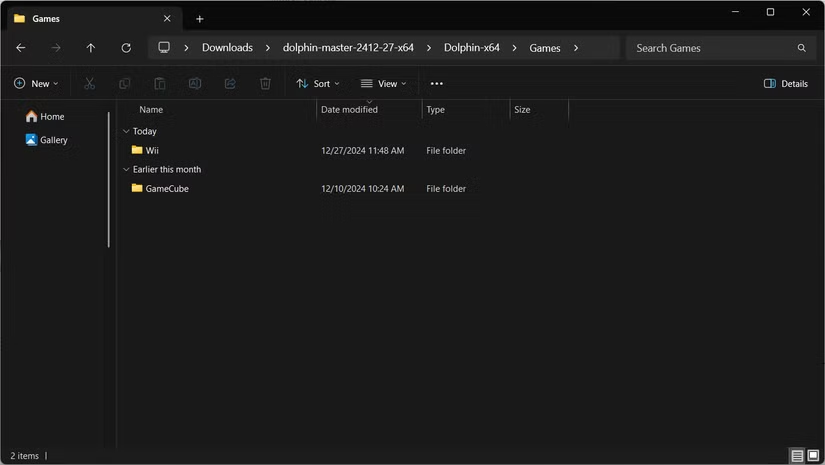
Recommended structure: Create a Games folder with GameCube and Wii subfolders. Dolphin scans these directories automatically. Refresh the main window after adding titles.
Compress your ISOs: ISO files consume 1–4GB each. Right-click any game → Convert File → choose RVZ format. Reduces file size significantly while maintaining full compatibility. Multiple-disc games can merge into single files through the same menu.
Legal Game Acquisition
Downloading games without ownership violates copyright law. For the full legal picture on emulation, read our dedicated are emulators legal guide.
The only legitimate method is ripping from physical discs you own. Via homebrewed Wii (most reliable): Install Homebrew Channel → Load CleanRip → Insert disc → Rip to SD card → Transfer ISO to PC. Dolphin’s wiki contains detailed CleanRip instructions.
GameCube Controller Configuration
Modern controllers emulate GameCube inputs easily. Xbox, PlayStation, and generic USB gamepads all function. Navigate to Controllers → GameCube → Port 1 → Standard Controller → Configure. Find your controller in the device dropdown. Map buttons by clicking each field then pressing the physical button.
| GameCube Button | Recommended Xbox Mapping |
| A / B / X / Y | A / B / X / Y |
| Z | RB |
| L / R Triggers | LT / RT |
| Control Stick | Left Stick |
| C-Stick | Right Stick |
| D-Pad | D-Pad |
| Start | Start / Menu |
Save the profile after mapping. Configure additional ports for multiplayer. The Wii U GameCube adapter functions but requires driver setup — consult Dolphin’s wiki for adapter configuration. For controller recommendations, see our CRKD Neo S controller review and Retro Fighters D6 review.
Wii Remote Pairing
Dolphin Bar Setup
The Dolphin Bar costs $20–$30. USB IR emitter with built-in Bluetooth. Simplifies setup significantly.
- Switch to Mode 4 using the rear button — blue LED indicates active mode
- Position bar above or below display, flip physical switch to match placement
- Connect to USB → Press Sync button on bar (starts blinking)
- Open remote battery compartment → Press red Sync button
- Remote vibrates when paired
Standard Bluetooth Method
- Controllers → Enable Emulate the Wii’s Bluetooth Adapter
- Click Refresh or enable Continuous Scanning
- Press 1+2 on older remotes or Sync on newer models
- Remote vibrates when connected
Wii Classic Controller Emulation
Many Wii titles support Classic Controller input — eliminates motion control requirements. Set up Wii Remote emulation first → Select Emulated Wii Remote for Player 1 → Configure → Under Extension, choose Classic Controller → select physical controller → map buttons. Games detect Classic Controller automatically when supported. Examples include GoldenEye 007, Super Smash Bros. Brawl, and Virtual Console titles.
Controller Compatibility Overview
| Controller Type | GameCube | Wii Support | Setup Difficulty |
| Xbox / PS Controllers | Emulated | Classic Controller | Easy |
| Real Wii Remote | No | Full (with sensor bar) | Medium |
| Wii U GameCube Adapter | Full | No | Medium–Hard |
| Generic USB Gamepads | Emulated | Classic Controller | Easy |
Box Art Display
Dolphin fetches game covers automatically. Enable under Config → Interface → Download game covers from gametdb.com. Switch library view from List to Grid. Covers download in the background.
Troubleshooting Common Issues
| Problem | Fix |
| Game runs at exactly half speed | V-Sync on a 30Hz display — disable V-Sync and retest |
| Stuttering when entering new areas | Switch to Hybrid Ubershaders + enable Compile Shaders Before Starting |
| Graphical glitches in one game | Switch backend — try D3D11 if using D3D12. Right-click game → Properties → Graphics to override per-game |
| Audio crackling or distortion | Audio → Backend → switch between XAudio2 and Cubeb. Increase buffer size if crackling persists |
| Wii remote won’t connect | Enable Emulate the Wii’s Bluetooth Adapter. Laptop Bluetooth often incompatible — try a USB Bluetooth dongle |
| Performance drops in specific games | Check Dolphin compatibility wiki for per-game tweaks. Try enabling Skip EFB Access from CPU in Graphics → Hacks |
| Black screen on launch | Corrupt or incomplete game file. Try converting to RVZ format via right-click → Convert File |
Best GameCube Games to Play on Dolphin
These titles showcase what Dolphin does best. See our games category for more recommendations across every platform.
- Super Mario Sunshine — One of the best 3D Mario games, looking extraordinary at 4x resolution. See our Super Mario hub for the full franchise guide.
- Metroid Prime — The definitive first-person adventure. Runs flawlessly with enhanced resolution that makes the atmospheric environments breathtaking.
- The Legend of Zelda: The Wind Waker — The cel-shaded art style looks like a modern release at 4x resolution. See our Legend of Zelda guide for the full series.
- Super Smash Bros. Melee — The competitive community actively uses Dolphin for netplay. Runs at 60fps on virtually any hardware meeting minimum specs.
- Luigi’s Mansion — Short, perfectly paced, and stunning at enhanced resolutions. With Luigi’s Mansion 4 confirmed, now is a great time to revisit the original.
- Resident Evil 4 — The GameCube version is the definitive original release. Runs perfectly on Dolphin.
- F-Zero GX — Still arguably the greatest racing game ever made. 60fps locked at any resolution.
Best Wii Games to Play on Dolphin
- Super Mario Galaxy — The best 3D platformer ever made. Runs perfectly; pointer controls work via Dolphin Bar.
- The Legend of Zelda: Twilight Princess — The best-looking Zelda of its generation. Our hardest Legend of Zelda games guide ranks where it sits in series difficulty.
- Mario Kart Wii — Still the most-played Mario Kart of all time. See our Mario Kart 9 preview for where the series heads next.
- Xenoblade Chronicles — A 100-hour JRPG that was originally Japan-exclusive. Runs flawlessly.
- Donkey Kong Country Returns — The best platformer on the Wii. Classic Controller supported — no motion controls required.
- Super Smash Bros. Brawl — Classic Controller supported. Runs smoother on Dolphin than original Wii hardware.
Dolphin on Other Platforms
Mac: Use the Metal backend on Apple Silicon. See our best Mac emulators guide for the full Mac emulation landscape.
Steam Deck: Runs excellently. Our guide to installing emulators on Steam Deck walks through the full Dolphin setup. Use Vulkan backend, 2x–3x internal resolution.
Dedicated handhelds: Our Retroid Pocket 4 Pro review covers GameCube performance specifically, as does our MOQI i7s Android gaming handheld review.
Linux: Our best emulators for Linux guide covers Dolphin installation and configuration in detail.
Essential Settings Reference
Graphics → General
- Backend: D3D12 (NVIDIA) / Vulkan (AMD) / Metal (Mac)
- Aspect Ratio: 16:9
- V-Sync: On (disable on 30Hz displays)
- Compile Shaders Before Starting: On
- Shader Compilation: Hybrid Ubershaders
Graphics → Enhancements
- Internal Resolution: 3x–6x Native (based on GPU)
- Anti-Aliasing: 2x–8x (based on GPU)
- Anisotropic Filtering: 16x
Config → General
- Dual Core: Enabled
Config → Wii
- Insert SD Card: Enabled
- Allow SD Writes: Enabled
Strengths and Limitations
| Strengths | Limitations |
| Free and open-source software | Requires manual configuration |
| Visual quality exceeds original hardware | No official controller support out of box |
| Supports real Wii remotes via Bluetooth | Motion controls require sensor bar or substitute |
| Portable installation, no system changes | Legal game acquisition requires Wii hardware |
| Modern controllers map easily to GameCube | Wii U adapter requires driver configuration |
| Active development — two decades of refinement | Development builds can break without warning |
| Runs on Mac, Linux, Android, Steam Deck | Android/handheld performance varies |
Final Assessment
Dolphin delivers the definitive GameCube and Wii emulation experience on PC. Visual enhancements surpass original hardware at virtually any resolution. Controller flexibility accommodates both modern gamepads and period-accurate Wii remotes. Two decades of open-source development have produced professional-grade results from free software.
The backend choice is the most critical decision you’ll make in setup — match it to your GPU brand using the table above and the rest falls into place. For everything else in your retro emulation setup, our complete emulators hub covers every system and platform. And if you’re after the PS3 equivalent of this guide, see our RPCS3 PlayStation 3 emulation guide.
Dolphin Emulator • Overall Assessment
★★★★★
5 / 5 • Best-in-class GameCube and Wii emulation
External download: 7-Zip (required to extract Dolphin on Windows)